
Show Hidden Files in Ubuntu - File Browser Guide

Viewing Hidden Files and Folders in Ubuntu's File Browser
By default, the Ubuntu file browser only displays visible files and folders to which your user account has permissions. Hidden files and system folders are not initially shown. This ensures a cleaner, less cluttered browsing experience for standard users.
Consider the appearance of the file browser when navigating the root file system under normal circumstances. As illustrated, folders designated as hidden or system-related are absent from the view.
A quick method to toggle the visibility of these files is to press Ctrl+H while the file browser is open. This key combination instantly reveals all hidden files and folders.
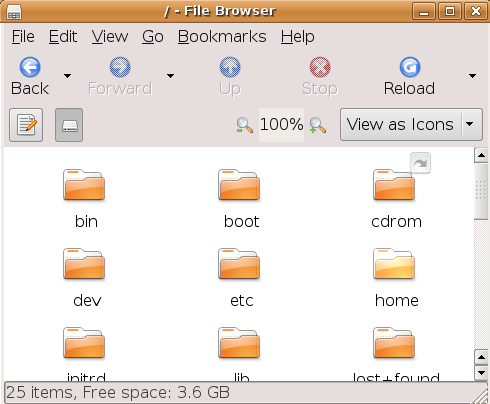
This shortcut provides a convenient, temporary solution. However, if you prefer to consistently view hidden files, a permanent setting change can be implemented.
Changing the Default File Browser Settings
To make the display of hidden files the default behavior, access the file browser's preferences. This is done by navigating to the Edit menu and selecting Preferences.
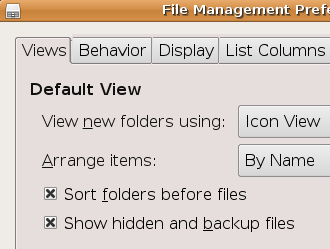
Within the Preferences window, locate and check the box labeled "Show hidden and backup files".
Once this option is selected, the file browser will consistently display hidden files and folders during every session, eliminating the need to repeatedly use the Ctrl+H shortcut.