
SQL Server Job Notifications via Email - SMTP Setup

Automating Database Backup Notifications in SQL Server
It's a common scenario: automated database backup jobs are scheduled, yet their status is easily overlooked. This can lead to a critical situation where backups are not functioning correctly, and a database crash results in data loss due to the absence of a recent, usable backup. Implementing email notifications provides a proactive solution, allowing you to monitor job status conveniently.
Utilizing SMTP for Email Delivery
SQL Server offers a built-in email sending capability; however, it necessitates the presence of Outlook and a configured profile on the server. This isn't always the most streamlined approach. Fortunately, an alternative method exists, involving the installation of a stored procedure that enables email transmission via SMTP. You can download the sp_SQLNotify stored procedure here.
A crucial step is modifying a single line within the stored procedure to specify the IP address of your SMTP server:
EXEC @hr = sp_OASetProperty @iMsg, 'Configuration.fields("http://schemas.microsoft.com/cdo/configuration/smtpserver").Value', '10.1.1.10'
For optimal accessibility, install the stored procedure into the master database. This ensures it can be readily utilized from any location within your SQL Server environment.
Configuring SQL Server Agent Job Notifications
Open the SQL Server Agent and navigate to the list of Jobs. Select the properties of the job for which you wish to establish notifications. Then, click on the Steps tab. The screen displayed will resemble the following:
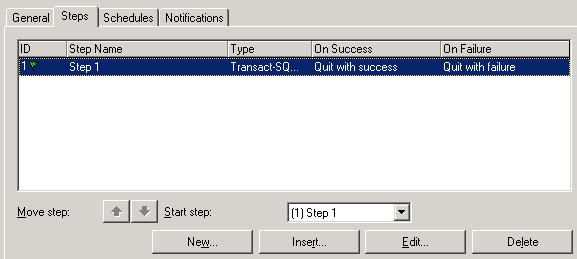
Click the New button to create a new job step. This step will be dedicated to sending an email notification upon successful completion of the job.
- Step Name: Email Notification Success
- Command:
exec master.dbo.sp_SQLNotify 'server@localserver.com','admin@localserver.com','Backup Job Success','The Backup Job completed successfully'
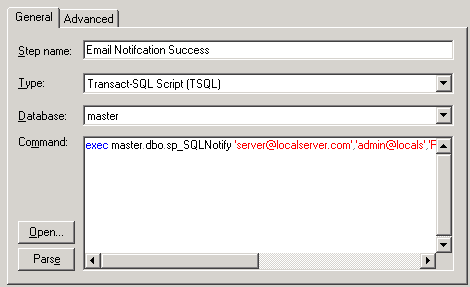
Click OK, and then click New again to create another step. This will handle failure notifications.
- Step Name: Email Notification Failure
- SQL:
exec master.dbo.sp_SQLNotify 'server@localserver.com','admin@localserver.com','Backup Job Failure','The Backup Job failed'
Defining Job Step Workflow
To ensure a specific sequence of events, configure the job steps with a defined workflow. First, edit the initial step and set its properties as follows:
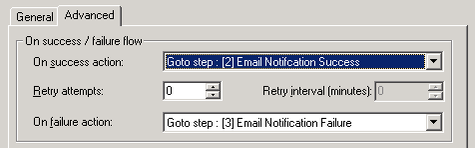
This configuration dictates that upon success, the job should proceed to the success step, and upon failure, it should proceed to the failure step.
Next, edit the step labeled "Email Notification Success" and adjust its properties as shown:
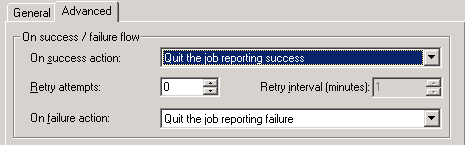
This ensures that if the notification job is successful, the job terminates without executing step 3, preventing duplicate emails (one for success and one for failure).
Finally, edit the step labeled "Email notification failure" and set its properties as follows:
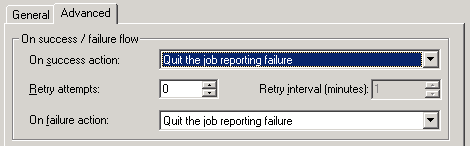
Your job steps should now appear as follows:
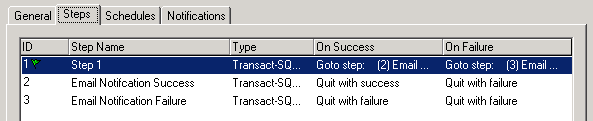
With this configuration in place, you will receive email notifications in your inbox, indicating either the success or failure of your database backup jobs.
Note: The sp_SQLNotify stored procedure used in this article was originally found here, though its original source may differ. You can download the sp_SQLNotify Stored Procedure here.