
Create Email Template in Outlook 2003 - Step-by-Step Guide

Streamlining Communication with Outlook Templates
If you routinely send the same email content or utilize a form requiring identical responses from users, Outlook templates can significantly reduce your workload and save valuable time.
Template functionality is unavailable when Word is designated as your primary email editor. Therefore, the initial step involves disabling this setting.
Disabling Word as Your Email Editor
Access Outlook Options by navigating to Tools and then Options from the main menu. Select the Mail Format tab. Ensure that the boxes indicating the use of Word are unchecked.
Creating a New Outlook Template
To begin template creation, open a new email message. Specify the intended recipient(s), compose a subject line, and craft the desired message body.
Following this, select File and then Save As from the menu.
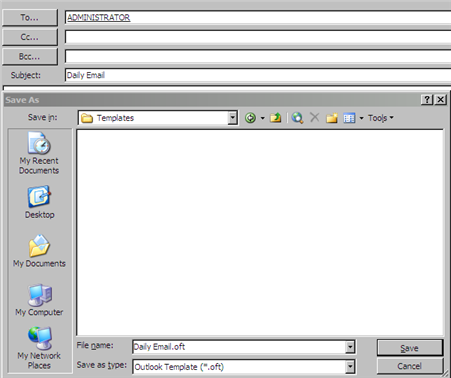
In the Save As dialog, choose “Outlook Template (.oft)” as the file type. Then, select a suitable folder and assign a descriptive file name to your template.

Using Your Saved Template
Locate the folder where you saved the Outlook Template icon and double-click it. Then, simply hit send to utilize the pre-defined content.
Alternatively, you can access the template through File \ New \ Choose Form \ User Templates.
This method provides a convenient way to quickly populate emails with frequently used information, enhancing efficiency in your daily communications.